
Sep 2026
/
5 min read
How to Display a Family Calendar on Apple TV
Turn your TV into a shared family calendar with TV - Family Calendar. Connect Google and iCloud calendars, explore day, week, and month views, and plan together.
A family calendar is most useful when everyone can see it. School events, appointments, work schedules, and weekend plans may already be organized on your phone, but the rest of the household still has to remember to check them.
TV - Family Calendar, an Apple TV calendar app, brings those plans onto your television. It turns a screen in your shared space into a calendar display, with support for iCloud Calendar and read-only Google Calendar. You keep managing events in your usual calendar app; the TV gives everyone a place to look.
Why put a family calendar on your TV?
A phone calendar is personal. A calendar in the living room can become part of the household routine: check tomorrow’s appointments after dinner, review the week before school, or look at the month together while planning a trip.
If you already have an Apple TV connected to a television, you can use that setup as your calendar display. TV - Family Calendar is a tvOS app, so you do not need to buy a separate dedicated calendar screen to try this approach. Open the app on Apple TV when you want the schedule in view.
It is especially useful when one person uses Google Calendar and another uses iCloud. Bringing those calendars into one display makes it easier to spot overlapping commitments without moving everyone to a different calendar service.
How to get your calendar onto Apple TV
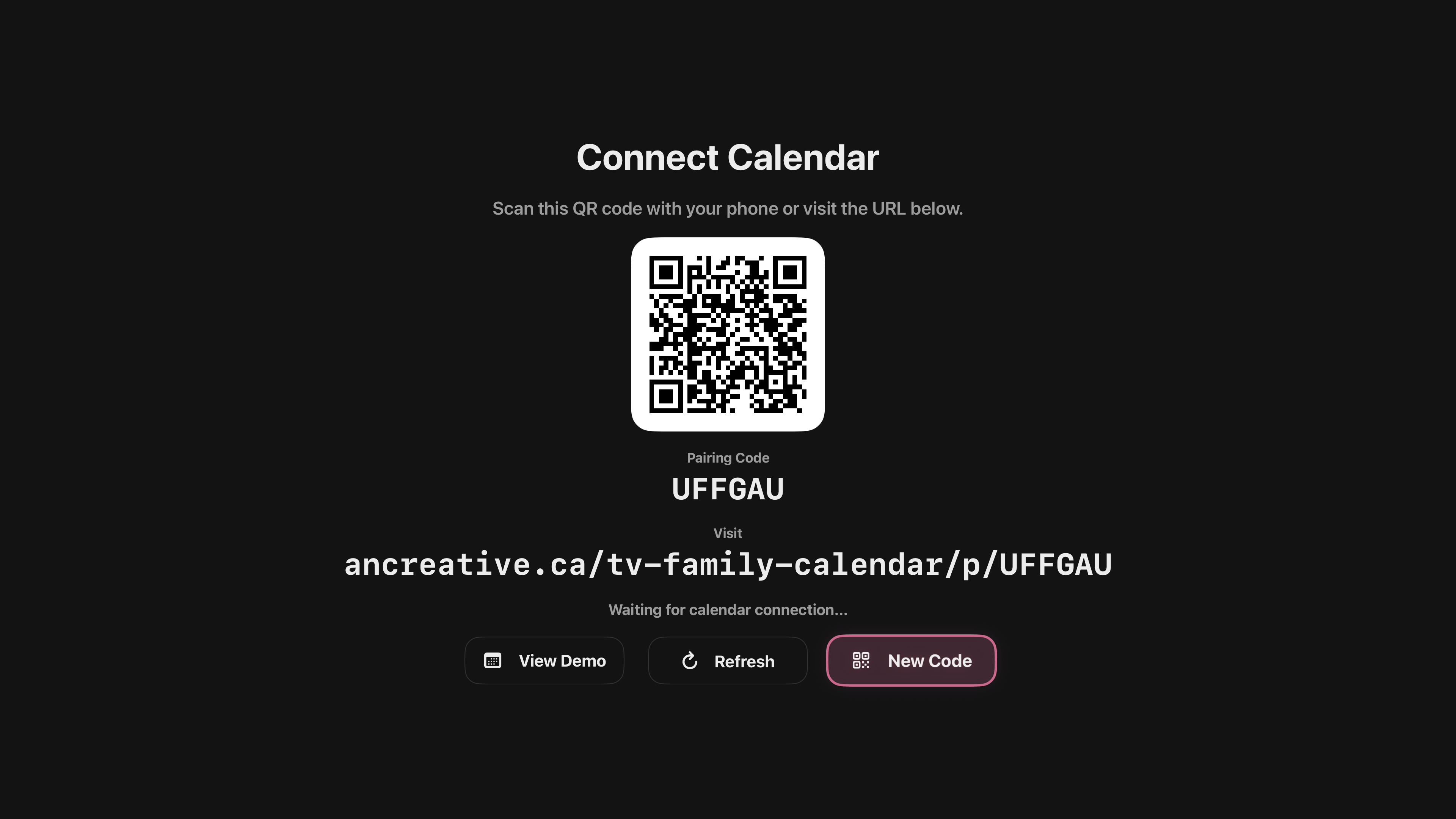
Start by downloading TV - Family Calendar from the App Store on your Apple TV. Open the app and follow its pairing instructions.
- Scan the QR code shown on the TV, or enter the setup code on the calendar pairing page.
- Use a phone or computer to complete setup. You do not need an iPhone or iPad for the pairing step.
- Choose the calendar connection you want to use: Google Calendar or an iCloud public subscription link.
- Return to the app on Apple TV to see your schedule and customize its appearance.
Show Google Calendar and iCloud Calendar together
For Google Calendar, the app uses read-only access. You continue adding and editing events in Google Calendar; the TV display is there to show your plans, rather than change them.
For iCloud Calendar, setup uses a public calendar subscription link. A public link can be read by anyone who has it, so choose a calendar you are comfortable sharing this way. A separate household calendar can be a practical choice for school dates, activities, and shared appointments. The app’s privacy policy explains how calendar connections and data are handled.
Think about which calendars belong on a screen everyone in the room can see. A family activities calendar may be useful there, while a calendar containing private work meetings may be better kept on your own device.
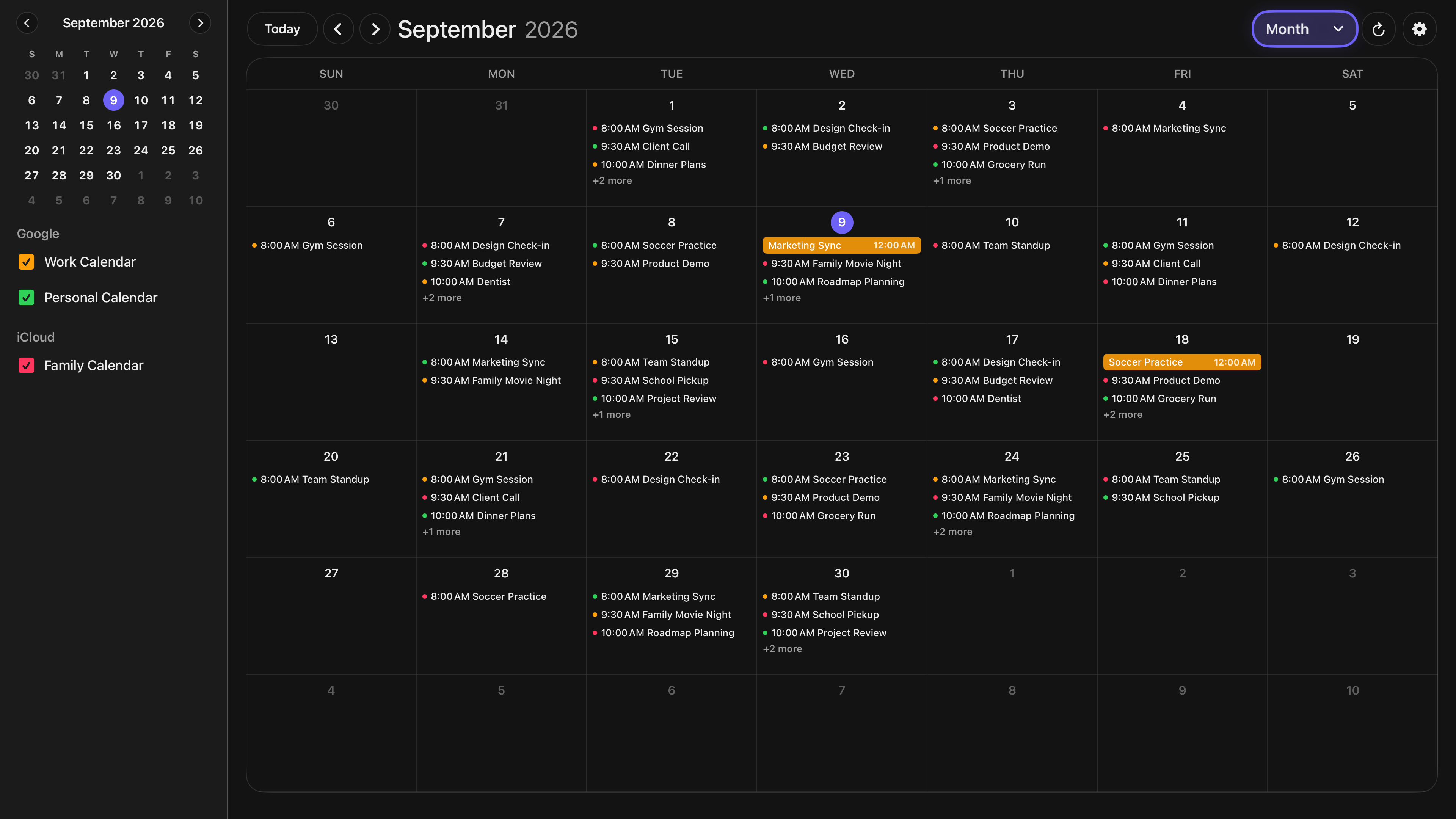
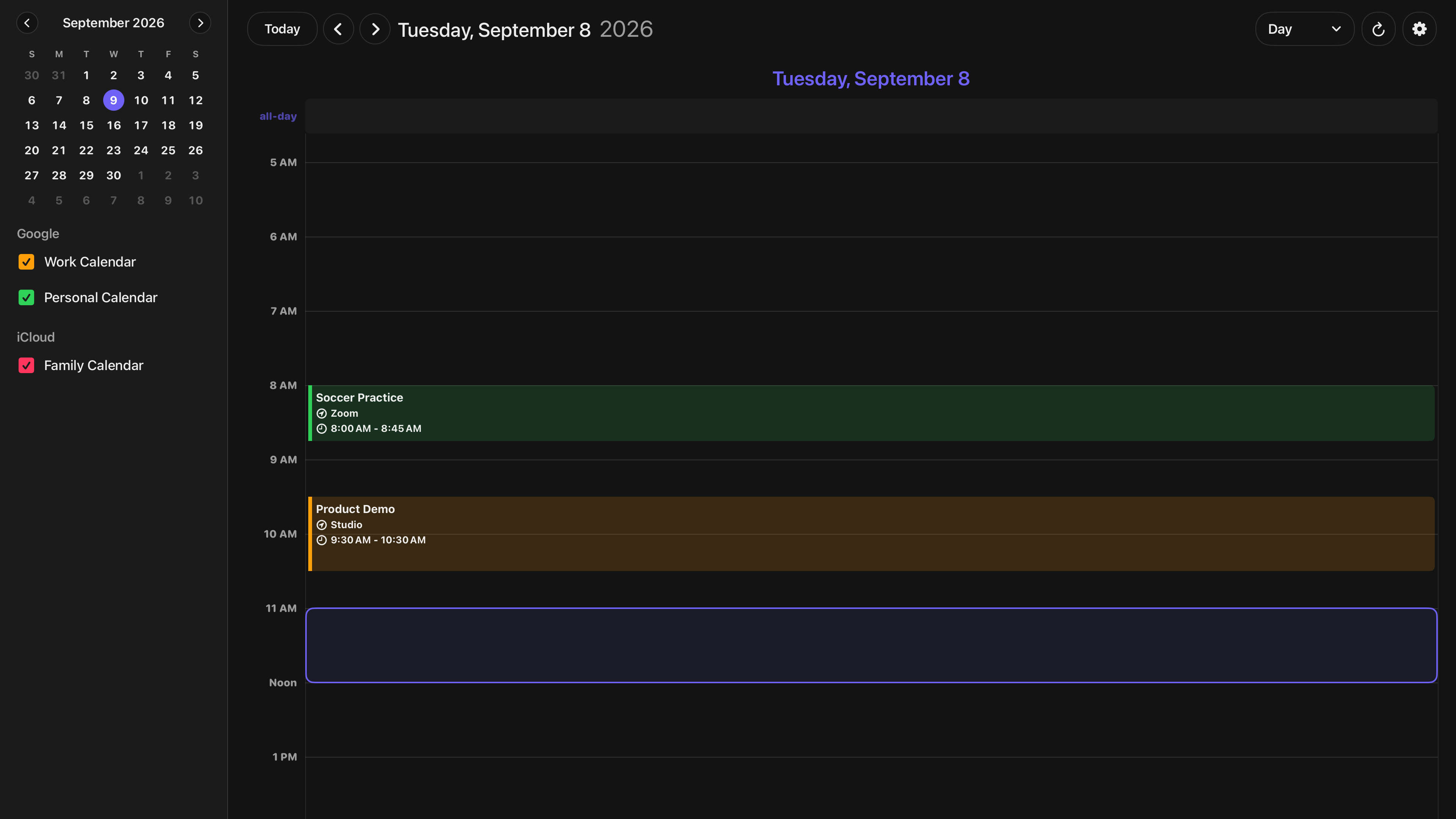
Choose a day, week, or month view
Different views answer different questions. Use the day view when you want to focus on today’s schedule. Switch to the week view when you are coordinating school, work, and activities. Choose the month view when you need a broader look at appointments and upcoming plans.
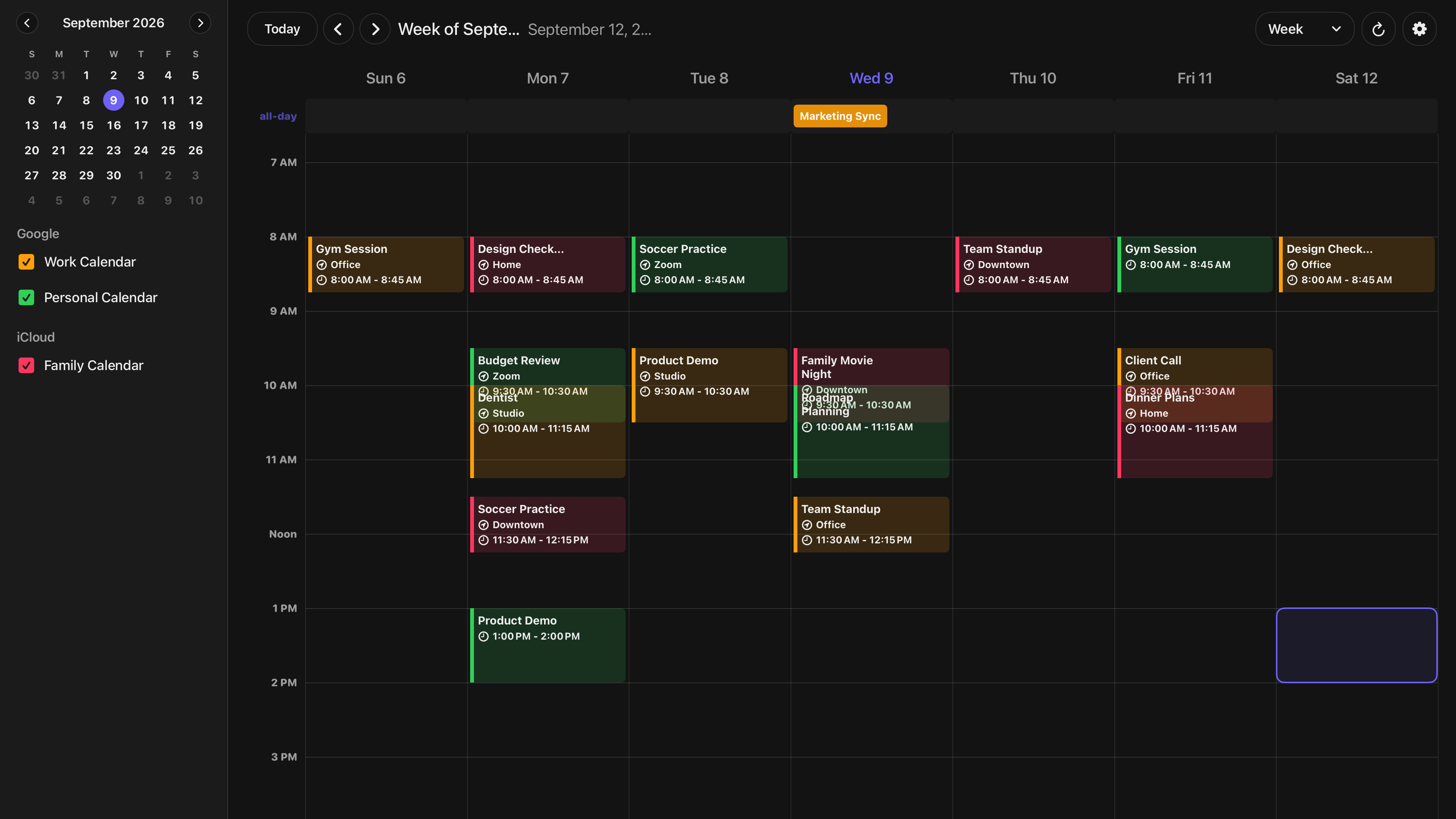
A simple routine is to review the week together on Sunday, then use the day view for a quick check before heading out. The display gives the conversation a shared reference: what is coming up, where do plans overlap, and what still needs organizing?
Make the display fit your home
TV - Family Calendar includes light and dark appearances, a System option that follows your Apple TV’s appearance, background themes, accent colors, and individual calendar colors.
Try a light theme if you prefer a bright calendar display, or a dark theme for a softer look in the living room. Giving each calendar a distinct color can help everyone recognize the plans that matter to them at a glance.
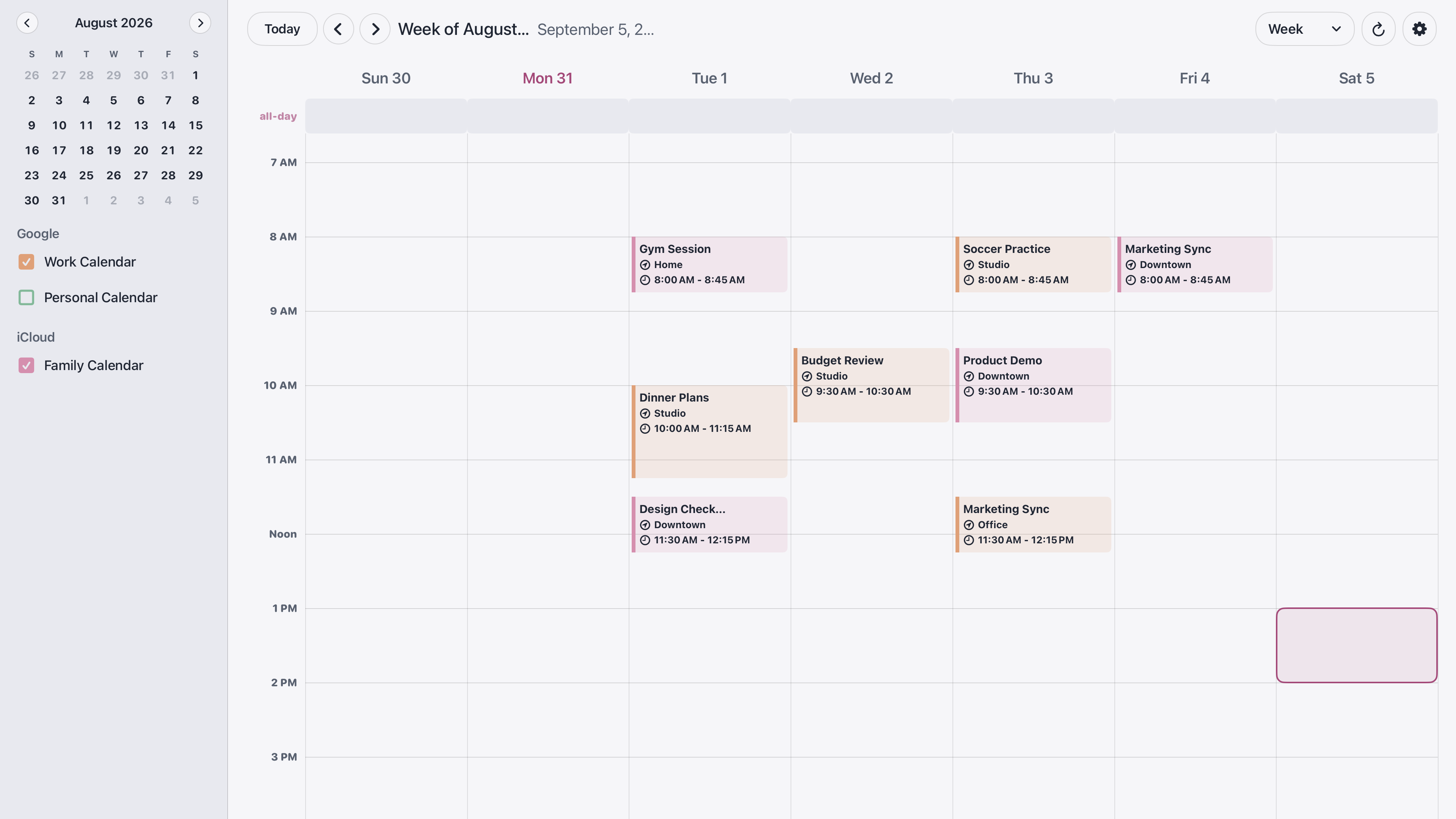
These choices also make the app useful beyond the home. A studio, classroom, or shared office can display a calendar for the people using that space, provided the events are appropriate for everyone who can see the screen.
A one-time purchase, without a calendar subscription
TV - Family Calendar is a paid app with no subscription or in-app purchases. Check the App Store for current pricing in your region. You can explore the views and appearance options on the TV - Family Calendar app page before downloading.
The goal is simple: make the schedule you already maintain easier to see and discuss. A shared display works best when the family knows where to look and keeps the connected calendars up to date.
Get TV - Family Calendar for Apple TV and bring your household’s plans onto one screen.